2012年3月13日

[iPhone]使用NSUserDefaults將自定義的Object存入手機


首先在自己的Object中加上
@interface YourObject : NSObject<NSCoding>
{
   
NSString *string_a;
   
NSString *string_b;
    int int_c;
}

然後在這個Object中加上encoderWithObject:和initWithObject:兩個方法
-(void)encodeWithCoder:(NSCoder *)encoder

{
   [encoder encodeObject:string_a forKey:@"string_a"];
   [encoder encodeObject:string_b forKey:@"string_b"];
   [encoder encodeInt:int_c forKey:@"int_c"];
}


-(id)initWithCoder:(NSCoder *)decoder

{
    self.string_a = [decoder decodeObjectForKey: @"string_a"];
    self.string_b = [decoder decodeObjectForKey: @"string_b"];
    self.int_c = [decoder decodeObjectForKey:@"int_c"];
    return self;
}

存入的方法
NSUserDefaults *defaults = [NSUserDefaults standardUserDefaults];
YourObject *obj = [[YourObject alloc]init];
NSMutableArray *arr = [[NSMutableArray alloc]initWithObject:obj,nil];
NSData *data = [NSKeyedArchiver archivedDataWithRootObject:arr];
[defaults setObject:data forKey:@"theKey"];

讀取的方法
NSUserDefaults *defaults = [NSUserDefaults standardUserDefaults];
NSData *data = [defaults objectForKey:@"theKey"];
NSArray *arr = [NSKeyedUnarchiver unarchiveObjectWithData:data];

2012年2月14日

[iPhone]Xcode cannot run using the selected device

在幫老闆Build的時候跳出了這個警告訊息,

"Xcode cannot run using the selected device"


申請Profile時已經把這個Device加入,所以稍微查了一下解決方法

這時候只要按Xcode右上角的Organizer,
點選Device,並點選Use for developer button,
就可以Build在手機上囉

2011年9月16日

[iPhone]Push Notification機制


Push Notification機制,可以讓Server來通知有安裝軟體的device,讓有安裝app的使用者可以收到server傳來的訊息。

1.      設定Server上的Notification功能:
(1)   先到iPhone Dev Center網站選取app的ID並將Enable for Apple Push Notification service打勾並點選Configure,點選之後會出現產生SSL憑證的視窗。
(2)   接下來打開Mac裡面的Keychain Access程式(鑰匙圈存取),打開最上面工具列的Keychain Access(鑰匙圈存取)>Certificate Assistant(憑證輔助程式)>Request a Certificate from a Certificate Authority(從憑證授權要求憑證),填寫CA相關的資訊之後點選繼續,並選擇存放的位置之後點選完成
(3)   接下來回來原本的網頁上,點選Continue,選擇剛剛步驟(2)產生的CSR檔點選產生,等待產生完成之後,就把檔案下載回來安裝到伺服器中。

2.      Client端程式碼:

有Push Notification功能的程式再啟動的時候,就會對iPhone進行Notification功能的註冊,包含了Alert、Badge number和Sound三種。
Alert會在iPhone上出現提示視窗,Badge number是在app icon的右上角顯示數字,Sound則是發出聲音。

我們可以在applicationFinishLauchingWithOptions:裡面加上

[[UIApplcation sharedApplication] registerForRemoteNotificationTypes :
UIRemoteNotificationTypeAlert |
UIRemoteNotificationTypeBadge |
UIRemoteNotificationTypeSound];

這樣就是對Alert 、Badge number和Sound進行註冊。

這一段code執行成功會呼叫application:didRegesterForRemoteNotificationsWithDeviceToken:
我們可以透過第二個參數得到device token,接下來要將這個device token傳給server

3.      Server傳送的格式
每一次Push Notification能夠帶payload,payload的最大長度規定是256 bytes。
並且必須帶有key為”aps”的dictionary

Aps dictionary
Key
Type

alert
String 或 dictionary
可以指定要show的message,或是傳送一個dictionary進行進階的設定
Alert dictionary
key
Type

body
string
Alert message
action-loc-key
String / null
如果指定string,原本的View button會替換成指定的string,
如果指定為null,alert視窗就只會出現單一一個OK button
loc-key
string
指定顯示格式(必須儲存在Localizable.strings)
loc-args
Array of string
指定顯示字串的變數陣列
launch-image
string
指定app lunch起來的時候會顯示的畫面。

badge
Number
顯示Application icon右上角紅色的數字,傳送0,圓圈就會消失
sound
String
接收到notification的時候的聲音檔案名稱。

JSON範例
Alert message顯示Test Message,Icon右上角數字顯示3,並播放bingbiong.aiff音效。
{
  "aps":
{
 "alert":"Test Message",
"badge":3,
"sound":"bingbiong.aiff"
}
}

Alert message顯示Test Message,並播放bingbiong.aiff音效,badge不傳送則數字會消失。
{
  "aps":
{
 "alert":"Test Message",
"sound":"bingbiong.aiff"
}
}


2011年8月4日

[C++學習筆記]Appearance屬性

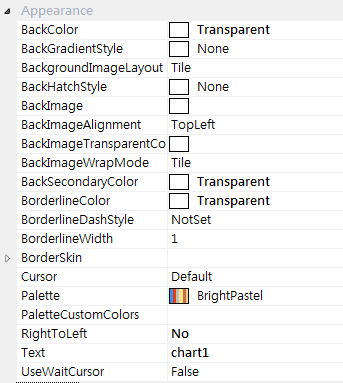
Control 類別的屬性
Appearance


BackColor
Control物件的背景顏色
BackGradientStyle
背景漸層的方向,可以設定BackColor和BackSecondaryColor為漸層的兩種色彩
BackgroundImageLayout
背景圖片的樣式,設定BackImage時才有效
BackHatchStyle
以BackColor作為底,BackSecondaryColor為線,可以選擇不同的BackHatchStyle繪製不同的線條樣式作為背景
BackImage
設定背景圖片
BackImageAlignment
背景圖片的對齊方式
BackImageTransparentColor
指定某個顏色,背景圖片中的這個顏色會變成透明的
BackImageWrapMode
指定背景圖片的排版方式
BackSecondaryColor
指定次要被景色
BoderlineColor
指定邊框的顏色
BoderlineDashStyle
指定邊框的樣式
BoderlineWidth
指定邊框的寬度
BorderSkin
這個項目內,可以指定邊框的樣式
Cursor
可以指定一種滑鼠指標的樣式
當滑鼠移到這個物件上方的時候,滑鼠指標會變成指定的樣式
Palette
指定圖表內容中的顏色
PaletteCustomColors
可選擇多個顏色自行建造新的Palette
RightToLeft
RightToLeft 屬性是用於語言由右至左書寫 (例如希伯萊文或阿拉伯文) 的國際性應用程式。這個屬性設定為 RightToLeft.Yes 時,包含文字的控制項項目會由右至左顯示。
Text

UseWaitCursor
指定是否要使用等待的游標

2011年8月2日

[iPhone]浮點數比較

今天發現了一個奇怪的問題,
我把一個icon的alpha值拿來比較,圖的alpha值是1.0,

我做了這樣的比較,但傳回的都是NO,
icon.alpha == 1.0

後來發現寫1.0還不夠,要寫1.0f才行...
像這樣

icon.alpha == 1.0f